Remove People from Photo
Brush over a stranger or a photobomber, and the AI fills in the scene behind them. Free to try, no sign-up.
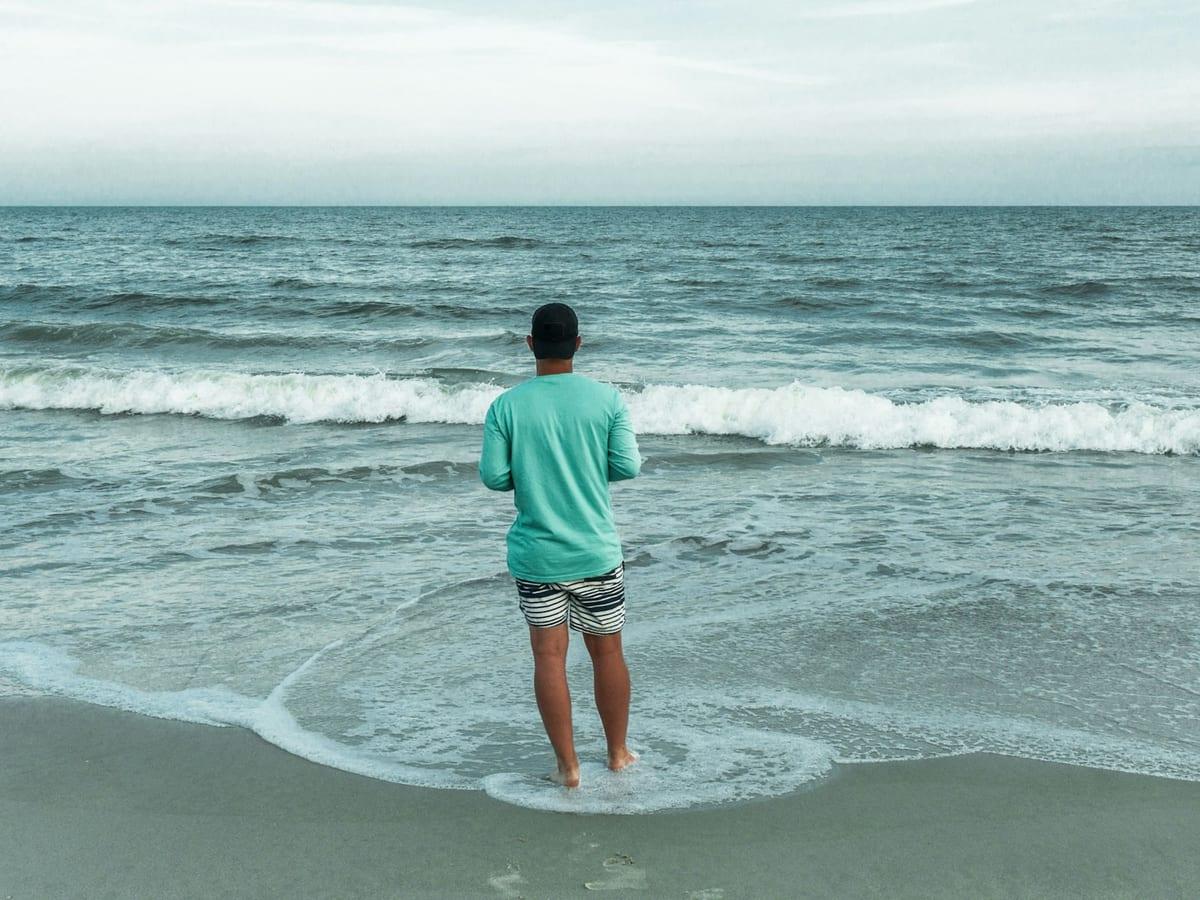 before
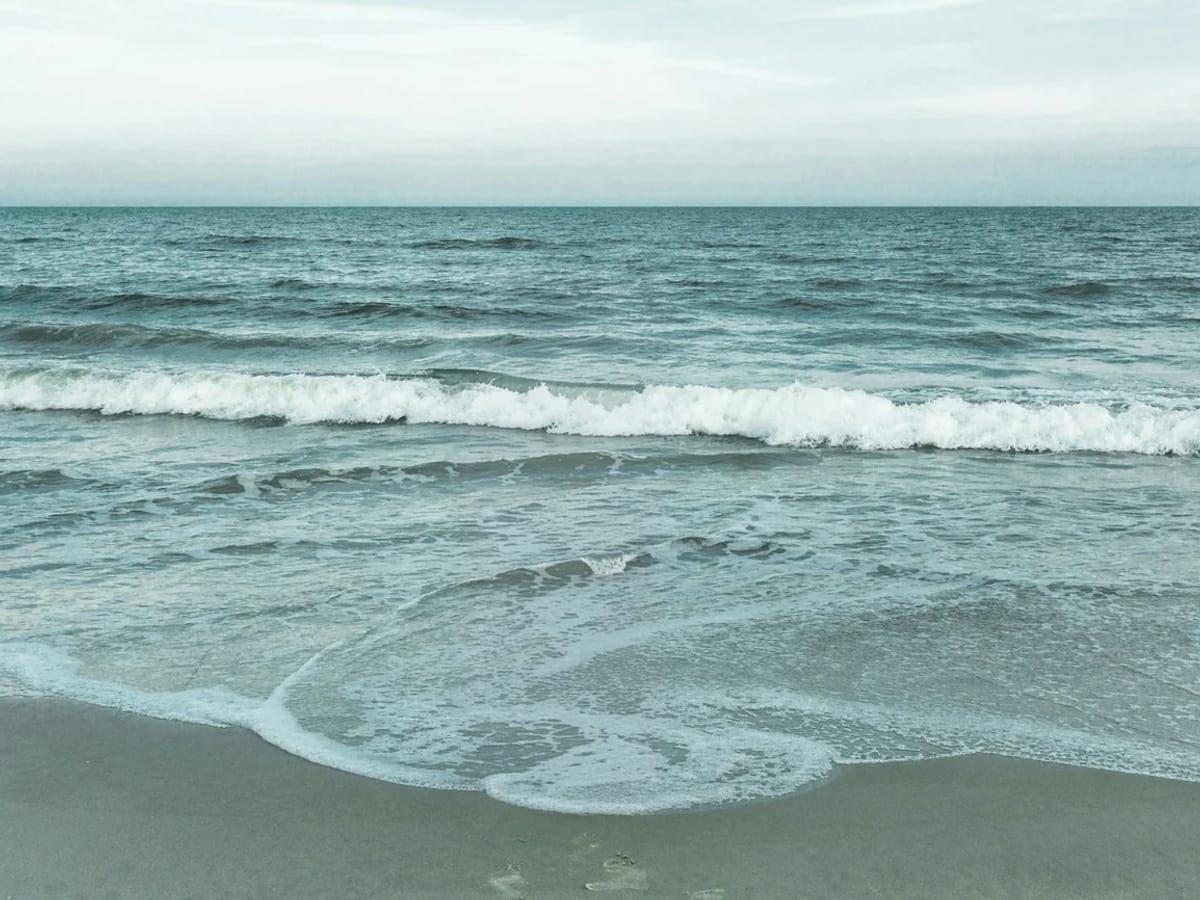 after
Take out anyone who wandered into the shot
Strangers walking past
Someone crossed the frame just as you pressed the shutter. Brush over them and the street or path behind is filled back in.
Photobombers
The grin over your friend's shoulder or the person who stepped into the edge of your selfie.
Tourists at landmarks
A visitor standing in front of the monument or strolling across the beach in your travel photo.
Extra people in group photos
Someone who isn't part of the group, or a person cut off at the edge of the frame. The spot where they stood is filled with background.
An ex in an old photo
Keep the trip, the view and your own smile, and take out the person you'd rather not see again.
Background that matches
The area is repainted from the scene around it, following its light, texture and perspective.
How to remove people from a photo
- 01
Upload your photo
JPG, PNG or WebP up to 10 MB.
- 02
Brush over the person
Cover the whole person and their shadow, with a little margin. Add a short description if the scene is busy.
Paint with the round brush (size 12–90) to cover them; Undo and Clear sit right below the photo.
- 03
Download the result
The person is gone and the background filled in. No watermark.
Tips for removing people cleanly
Cover the shadow too
Brush over their shadow and any reflection as well, or a dark outline is left where they stood.
One person per pass
Remove one person, download the result, then upload it again and brush the next one. Several people in one pass rarely come out clean.
Say who it is
A few words like “the woman in the white hat” help the AI in a busy scene.
Open backgrounds are easiest
People against sky, sand, grass or a plain wall disappear most cleanly. Someone overlapping your subject is harder; brush a slightly larger area and try again.
Related tools
- Something other than a person in the way? Remove object from photo with the same brush.
- Want the person on their own instead? Remove background from photo and download a transparent PNG.
- Change the sky, the lighting or the whole scene with the free AI picture editor by typing what you want.
Frequently asked questions
How do I remove a person from a photo?
Upload the photo, brush over the person you want gone, including their shadow, and optionally describe them in a few words. The AI removes them, paints in the background where they stood, and you download the result.
Does it find people automatically?
No. There's no automatic person detection or one-click selection: you paint over the person yourself with a round brush (size 12–90), and only the area you brushed is rebuilt. It works on one person at a time, so in a group or a crowd, remove one person, download the result, upload it again and brush the next.
What size photo can I use?
JPG, PNG or WebP up to 10 MB. Photos over 2,048 pixels on the longest side are scaled down first. The result comes back at about 1 megapixel, for example 1154×866 for a 4:3 photo.
Is it free to remove people from photos?
Yes. 2 free edits a day, reset at 00:00 UTC. It's 2 a day whether or not you have an account — signing up doesn't add extra free edits. A free account gets a one-time 20-credit welcome bonus after email verification. Free edits are used before credits. Each person you remove uses one free edit, or 2 credits once your free edits are used up. If an edit fails, its credits are refunded automatically. Results are never watermarked.
Can I remove someone from a photo without them knowing?
Editing a photo doesn't notify anyone, and the tool doesn't identify the people in it. That doesn't make every edit fine: only edit photos you took yourself or have permission to edit, and don't use an edited photo to mislead, harass or misrepresent anyone, which our Terms of Service forbid. Your photo is sent to our AI model provider only to make the edit, and on the free plan uploads and results are deleted after 24 hours.